

Full DATEV configuration (LocalAgent)
This guide explains how to activate your connection to DATEV using the local DATEVConnect API through a local agent installed on your machine. This method does not require exhibition any URL, which is something only your integrator can technically handle—and in some cases may decline to do.
If you prefer not to use the Local Agent installation, and your integration is going to expose the URL, you can proceed with the alternative setup. In that case, please contact your software provider to be directed to the correct instructions.
The alternative method is explained in a separate article here
📋 Overview
This integration connections with two DATEV components:
-
DATEV Rechnungswesen – On-premise accounting software (main data source)
-
DATEV Unternehmen Online (DUO) – Cloud portal used only for sending attachments such as documents, invoices, or receipts
If you do not plan to send attachments, DUO is not required.
This connection requires installing a Local Agent on the server where DATEV is running.
⏱ Estimated time: 5 minutes for a complete installation.
(Make sure to verify that your system meets all the conditions listed in the Prerequisites section below 👇 )
🚨 PREQUISITIES (conditions to be met) priority to connection)
1. Licences
|
Licences |
Description requirement |
|
DATEV Rechnungswesen license |
Mandate. Owned either by your company or provided through your accountant/tax advisor. |
|
DATEVConnect license |
Mandate. API accessables. Usually already included in DATEV installations but must be activated. If missing, you can order it (free) via DATEV |
|
DATEV Unternehmen Online (DUO) license |
Only required if attachments (PDFs, invoices, receipts) will be sent to DATEV. |
How to confirm licenses:
-
In DATEV Arbeitsplatz, go to License Management (Lizenzverwaltung) to view installed licenses.
-
Or request confirmation from your DATEV administrator, accountant (Steuerberater), or DATEV service partner.
2. User Account Requirements
You must provide the Windows username and password of a Windows user account that is linked to a DATEV user with the following permissions:
✔ Access to the report mandate/company in DATEV Rechnungswesen
✔ Rights to use the DATEVConnect service
✔ Sufficient rights to read/write accounting data (depending on integration scope)
DATEV requires that API authentication is conducted using a Windows login that is mapped to a DATEV user account. This mapping is configured in DATEV Benutzerverwaltung (User Management).
⚡️ CONNECTION
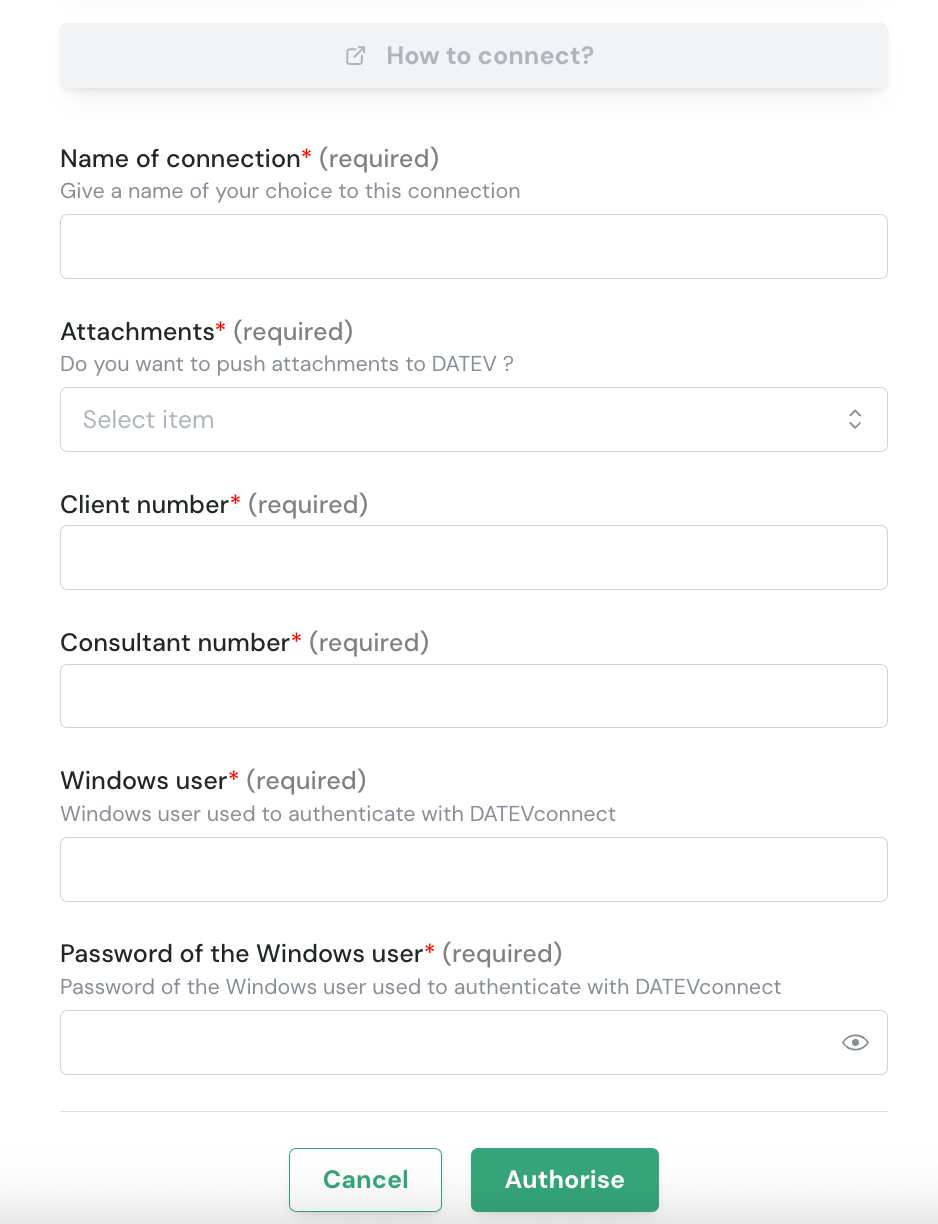
Step 1: Choose a name for your connection. (If the connection name field is not visible, simply skip this step and continue.

Step 2: Choose when you want to send attachments
If you do not see this option, it means your software provider preset this setting for you.
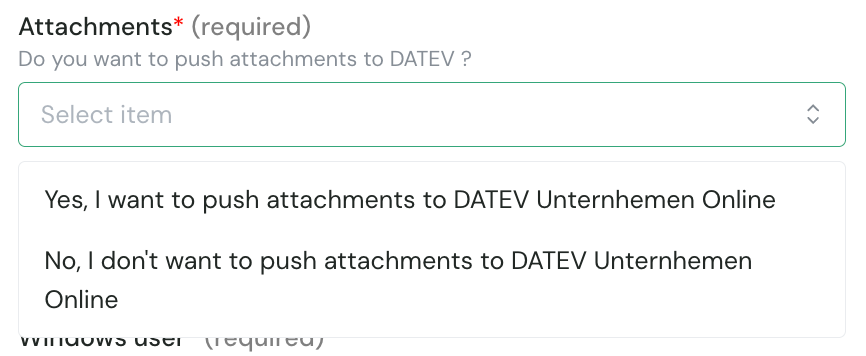
-
If your integration needs to send PDF invoices, receipts, or supporting documents to DATEV, select Yes to enable attachments.
-
This requirement is valid DATEV Unternehmen Online license (see above in prerequisites section)
Step 3 : Enter your Consultant Number and Client Number.
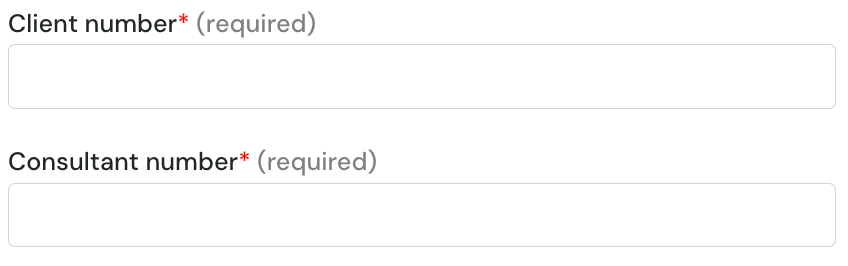
Enter your Consultant Number and Client Number.
Where to find them? 👇
-
Go to DUO sign-in page
-
Click Show document overview
-
The numbers are shown on the right, below Settings:
-
First number = Consultant Number (5696507 in the example)
-
Second number = Client Number (55003 in the example)
-

Step 4 : Fill in you Windows user and password linked to DATEV account
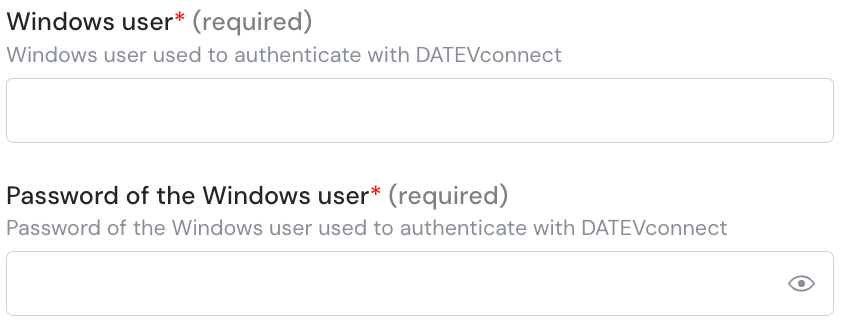
Enter the Windows username and password of the user linked to the DATEV account, as described in prerequisites.
Step 5: Click "Authorise" to finalize the connection.

Once you have clicked, a new dialog page will pop up to choose how you want to receive the install to be installed on your DATEV mahcine. Installation take 1 min and is explained in the next section
💿 INSTALLATION
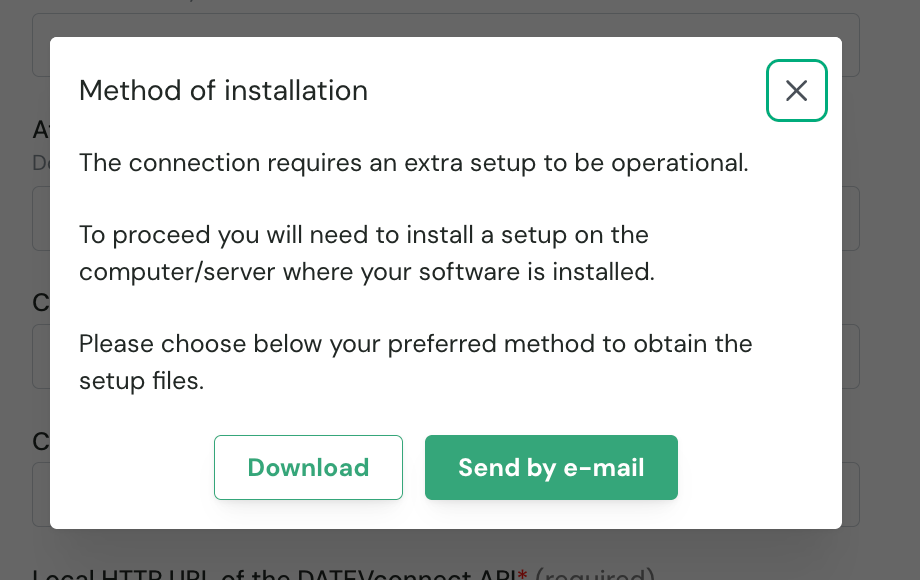
have two options to download and install the local agent on the same server as your DATEV instance:
-
If DATEV is hosted on your computer, you can directly download the program by clicking on Download.
-
If DATEV is hosted on another server, you have the option to send the program via email (e.g to the person or company hosting DATEV so they can download and install it).
Step 1: You have the file named: "Setup.zip". Extract the file to a folder "Setup" (click right, and do Extract All). It is important to first extract the zip before double clicking on it.
Step 2: Open the folder Setup. The folder should contain two files:
-
settings.json : you do not have to edit this file, it contains the credentials needed to make the bridge to DATEV
-
SetupLocalAPIService.exe: This is the file we need to make the installation
Step 3: Double click on "SetupLocalAPIService.exe" to start the installation. To complete the installation, you need to go through each step:
-
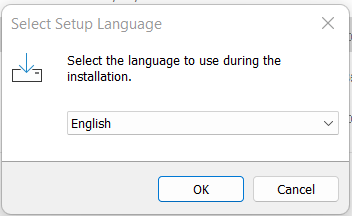
Select the language of the installation screen
-
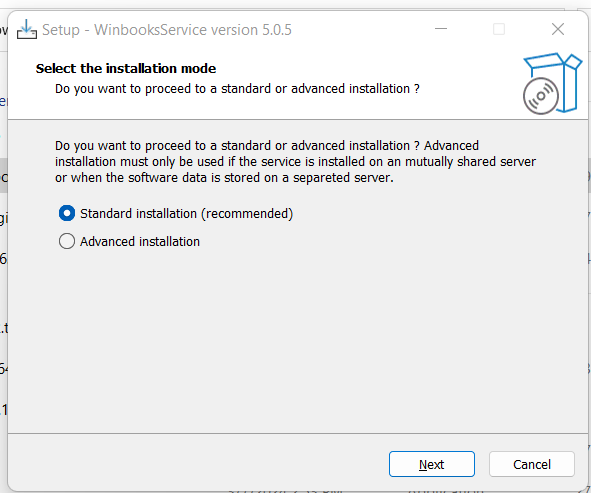
Select the installation type: "standard installation" is recommended
-
In this step, it is important to select the settings.json extracted in the downloaded file. By default, it should always have selected that file.
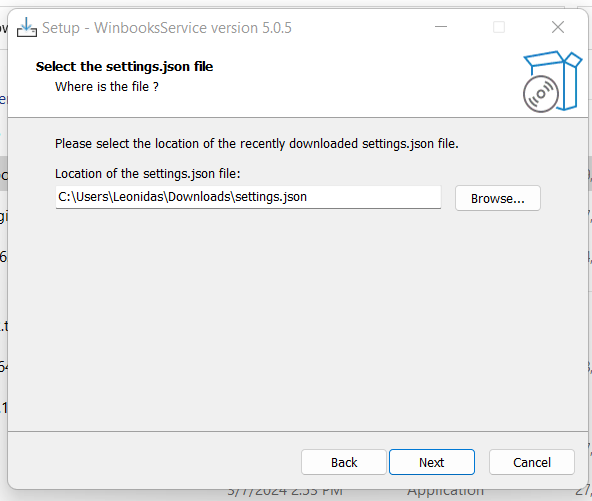
Continue through the different steps until you get a message saying that the installation is successful
Once done, your connection to DATEV will be fully active. 🎉 🕺
VERIFICATION
How to check that the service was properly installed?
Step 1: Open the explore menu and search for "Services"
Step 2: Open "Services"
Step 3: A new window will open with a list of services. You should find in this list a service called "LocalAPIService" with a status "Running". If this is the case, you have successfully completed the connection with DATEV.

