Pourquoi connecter Exact Online FR avec Data Merge Finance ?
Prepare the configuration of Exact Online FR with Data Merge Finance in France: prerequisites, accounting framing and Chift documentation.
Cette connexion s’adresse aux PME, fiduciaires et structures en croissance qui utilisent Exact Online FR comme logiciel et veulent transmettre des données fiables vers leur environnement comptable en Belgique, en France ou dans un contexte transfrontalier.
Les recherches les plus fréquentes autour de cette page portent sur des besoins concrets comme Zoho Books + Exact Online FR, Pennylane + Exact Online FR ou Odoo + Exact Online FR. Derrière ces requêtes, l’objectif reste le même : connecter la facturation, la TVA, les tiers et les écritures sans ressaisie manuelle.
- Synchronised data: sales invoices, purchases, credit notes, third parties, VAT, newspapers and useful items according to the selected framing.
- Expected benefits: less double encoding, fewer closing corrections and better continuity between management and accounting.
- Setting up: a few days of framing and validation on your priority cases, then a gradual and controlled production.
La documentation technique ci-dessous détaille ensuite les prérequis, les étapes de configuration et les points de contrôle pour intégrer Exact Online FR proprement dans votre flux Data Merge Finance.
Configuration complète de Exact Online FR
PREPARATION
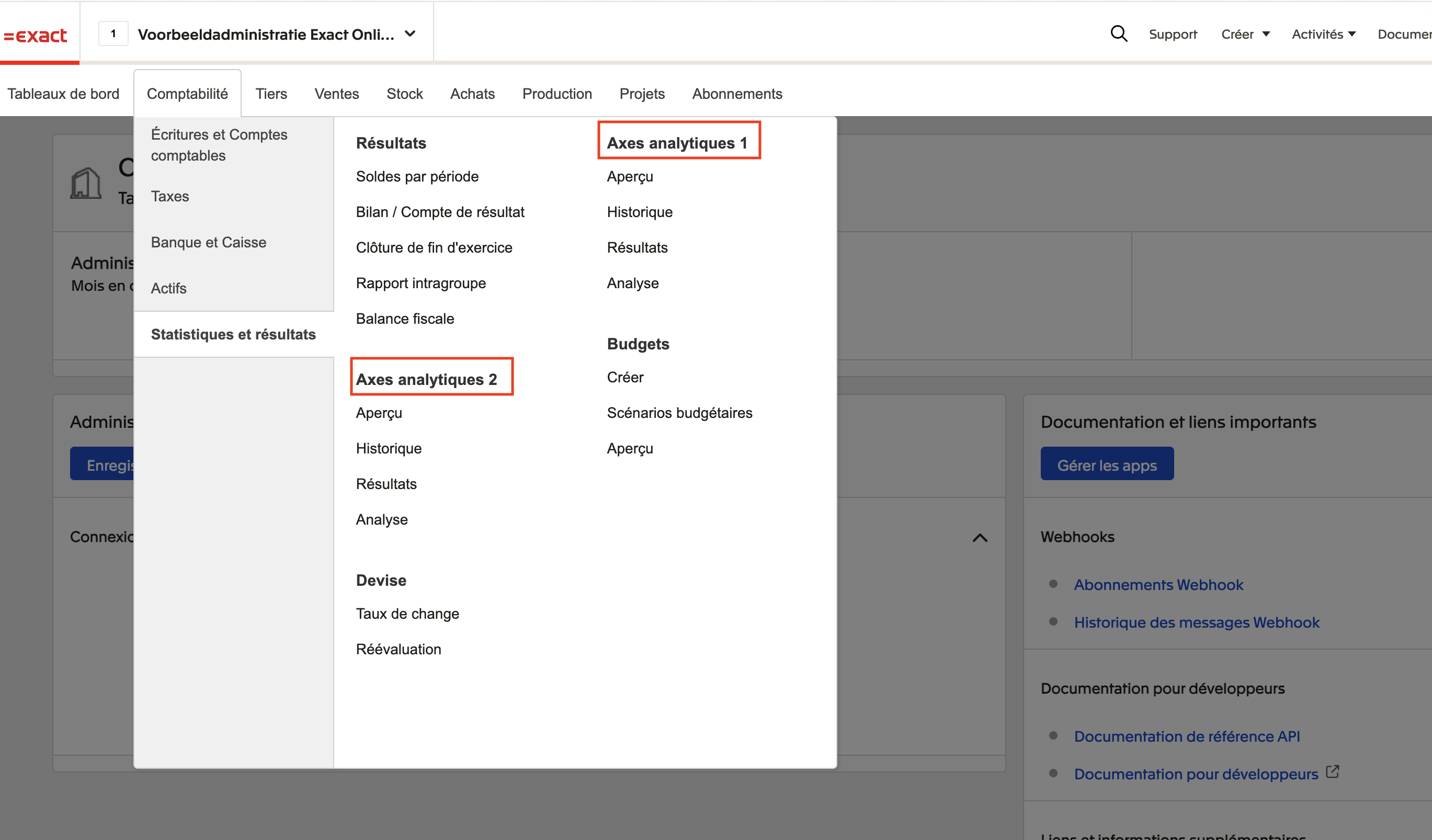
Check if your version of the exact online software allows the sharing of cost accounting data
The configuration of the analytical axes can be found in the accounting tab, then statistics and results (in the case of the image account below, the two analytical axes are activated).
CONNECTION
Step 1: Choose a name for your connection.

Step 2: Choose the analytical axis to connect.
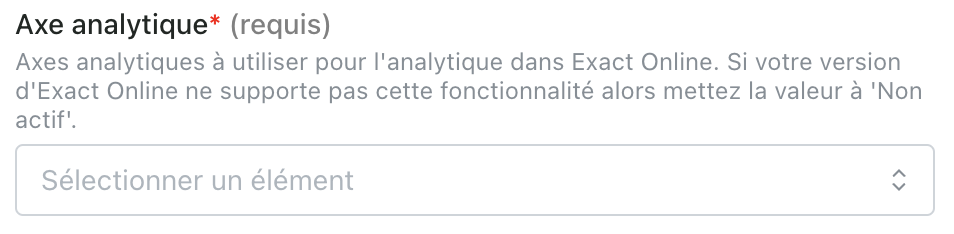
Step 3: Click "Authorize" to complete the connection

AUTHORIZATION
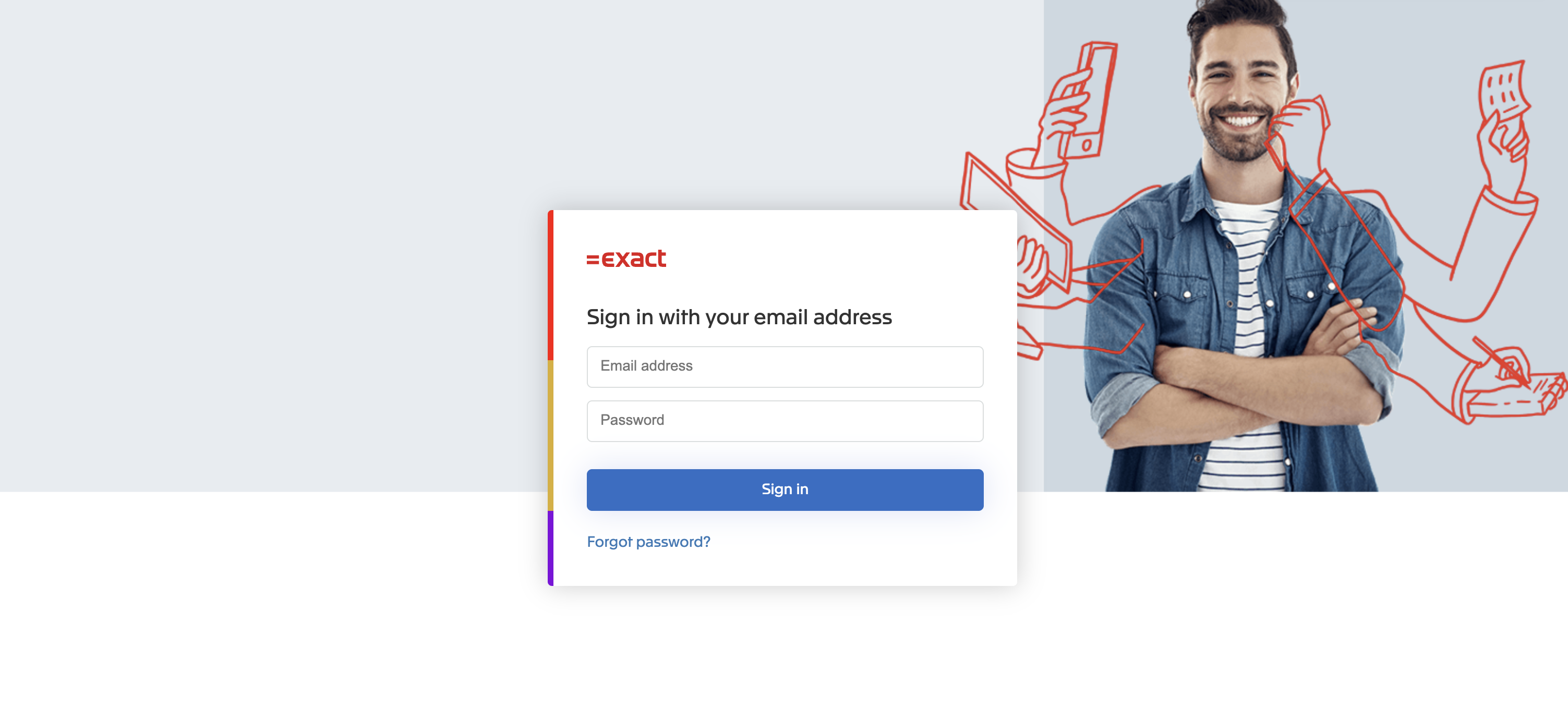
You will be redirected to an Exact Online window to authenticate yourself safely
CONFIGURATION
Step 1: Select the company (the folder) for which (which) enable connection.
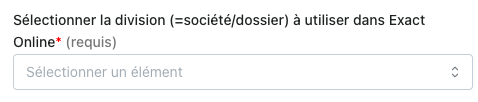
ATTENTION: you may not find the company/division you want to connect in the drop-down list. If so, you must modify the companies/divisions allowed in Exact Online. This requires:
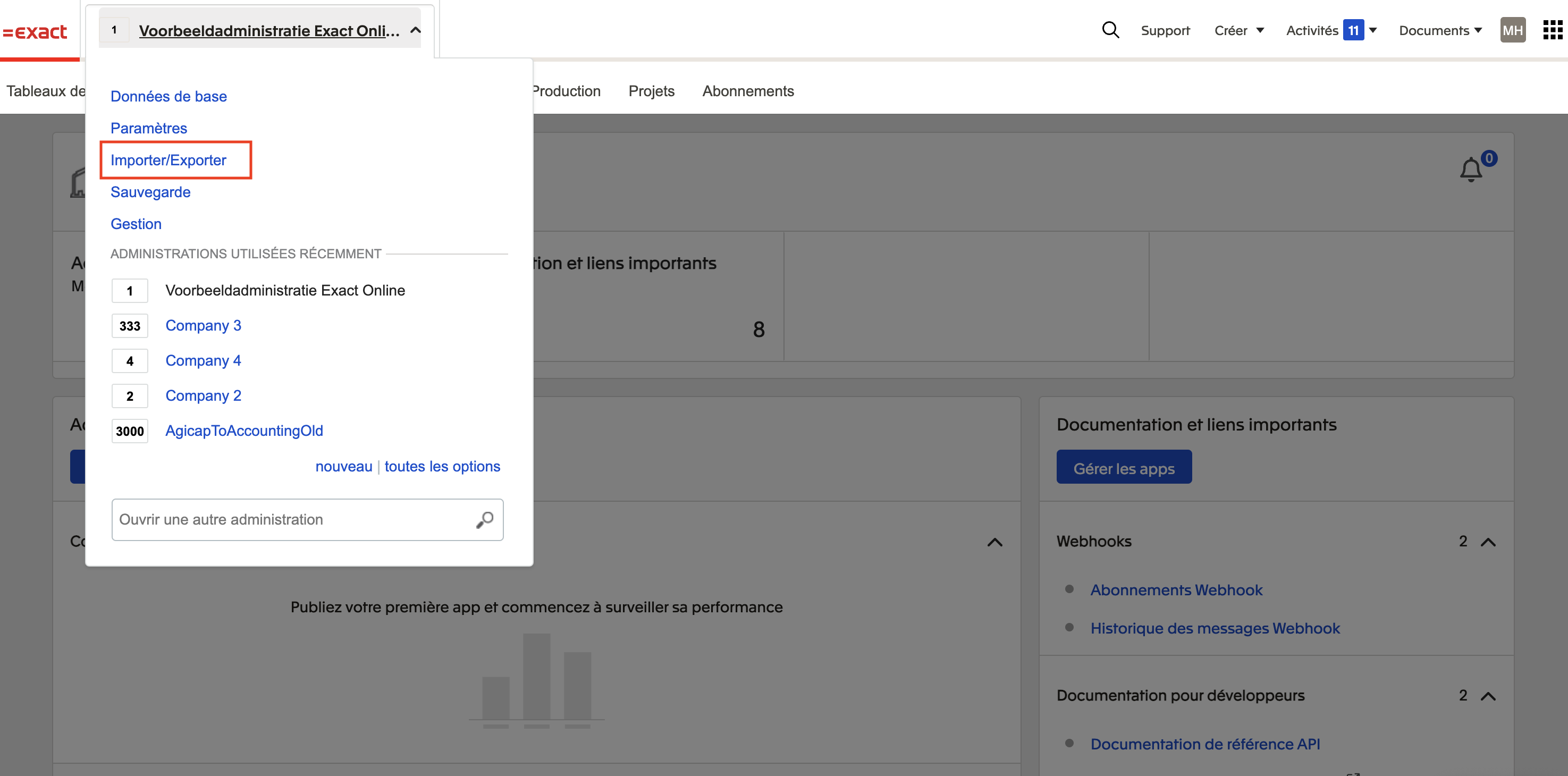
1) Open the menu "Import/Export"
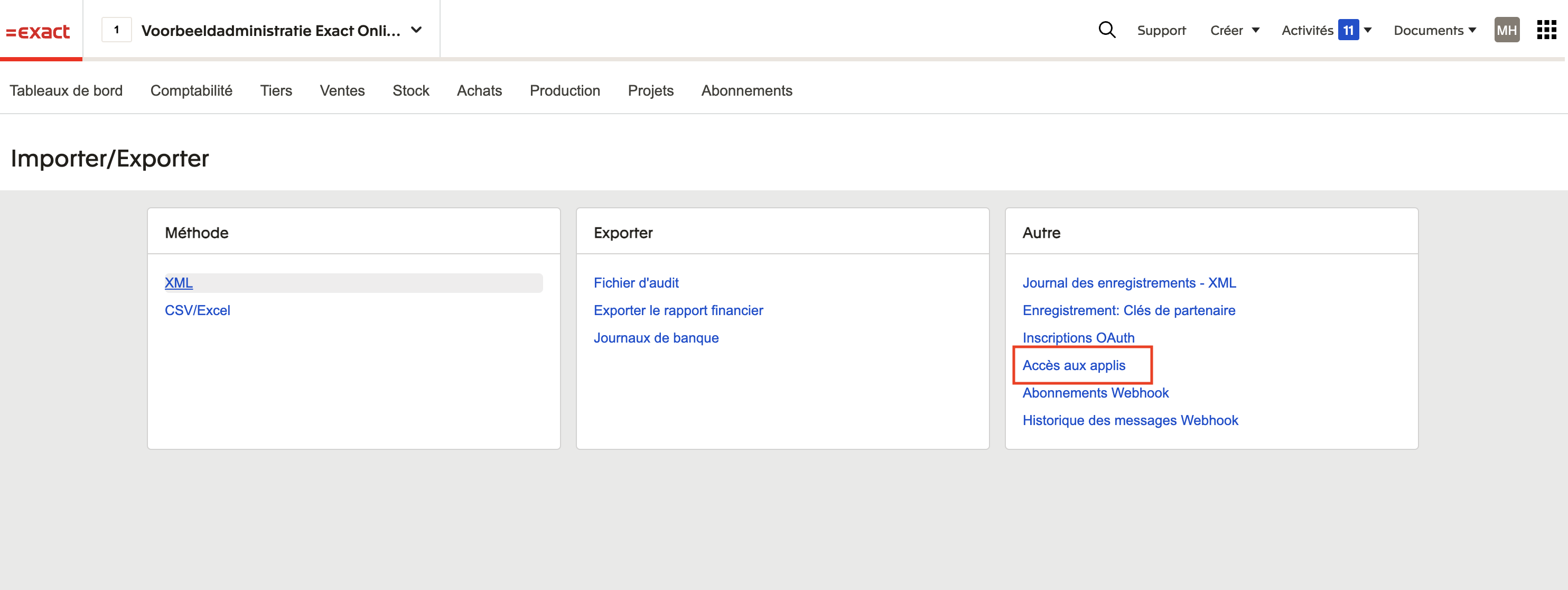
2) Select "Access to Apps"
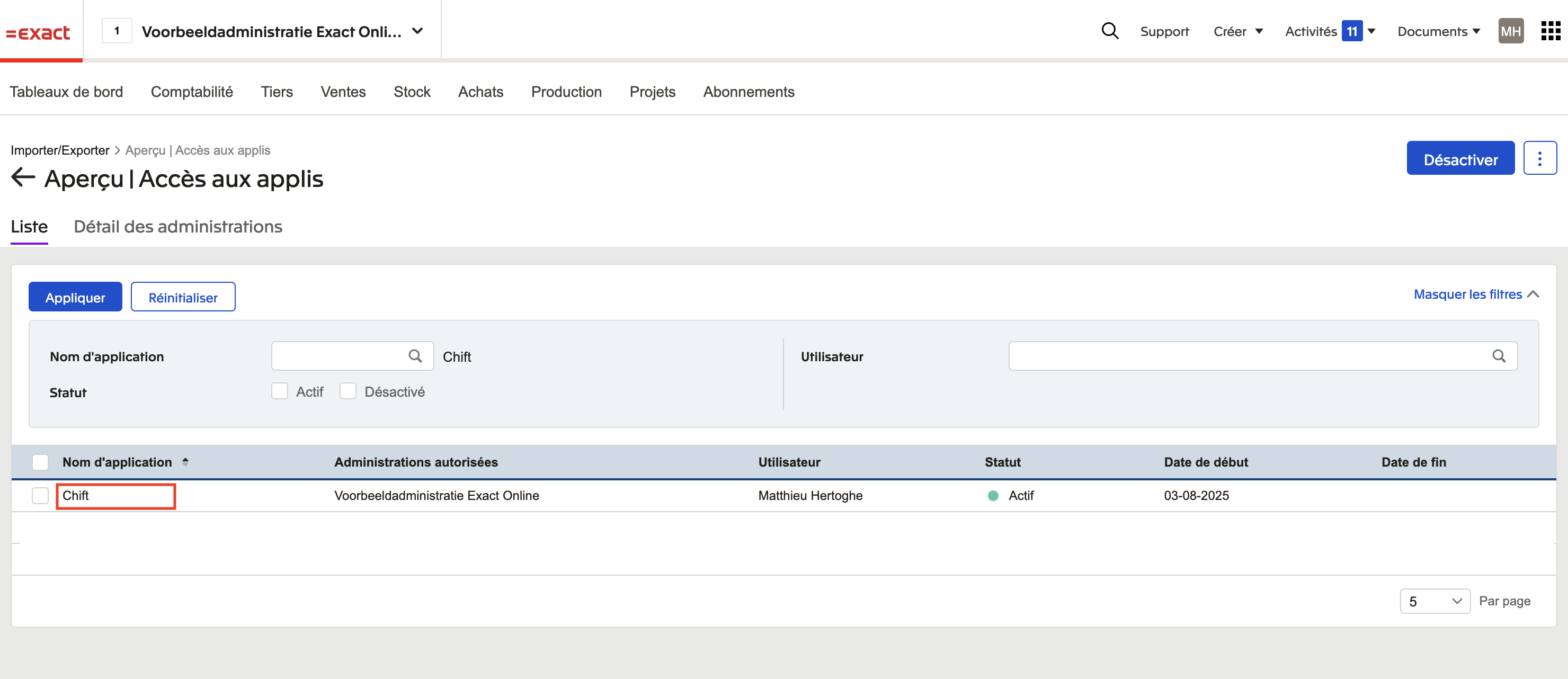
3) Select the application you are trying to connect
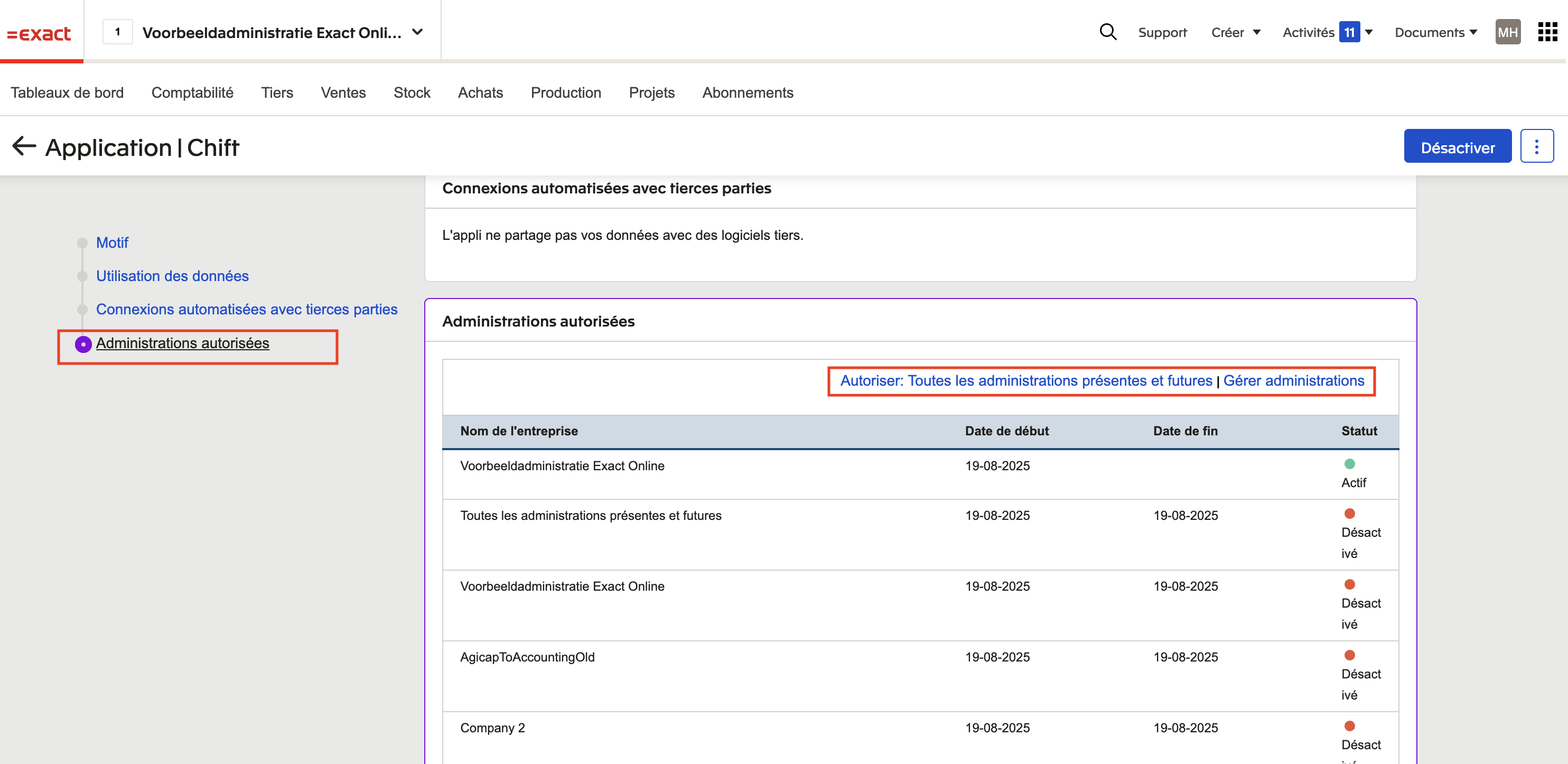
4) Go to the section "Authorized Administrations". Here you can authorize all existing and future administrations OR select specific administrations via the "Manage Administration" button
Step 2: Click "Valider" to finalize the configuration.