Why connect InexWeb – In Extenso with Data Merge Finance?
Prepare the configuration of InexWeb – In Extenso with Data Merge Finance in France: prerequisites, accounting framing and Chift documentation.
This connection is for SMEs, trustees and growing structures that use InexWeb – In Extenso as software and want to transmit reliable data to their accounting environment in Belgium, France or in a cross-border context.
The most frequent searches around this page focus on specific needs such as Zoho Books + InexWeb – In Extenso, Odoo + InexWeb – In Extenso or Teamleader + InexWeb – In Extenso. Behind these requests, the objective remains the same: to connect invoicing, VAT, third parties and entries without manual retrieving.
- Synchronised data: sales invoices, purchases, credit notes, third parties, VAT, newspapers and useful items according to the selected framing.
- Expected benefits: less double encoding, fewer closing corrections and better continuity between management and accounting.
- Setting up: a few days of framing and validation on your priority cases, then a gradual and controlled production.
The technical documentation below then details the prerequisites, configuration steps and control points to integrate InexWeb – In Extenso properly into your Data Merge Finance feed.
Full configuration of InexWeb – In Extenso
PREREQUIRED
The application you are trying to connect to "InexWeb – In Extenso" must be enabled. Please check that this is the case before you enable the connection. If not yet, please contact In Extenso support (assistance@fulll.help) to activate the application.
CONNECTION
Step 1: Choose a name for your connection.

Step 2: Click "Authorize" to complete the connection.
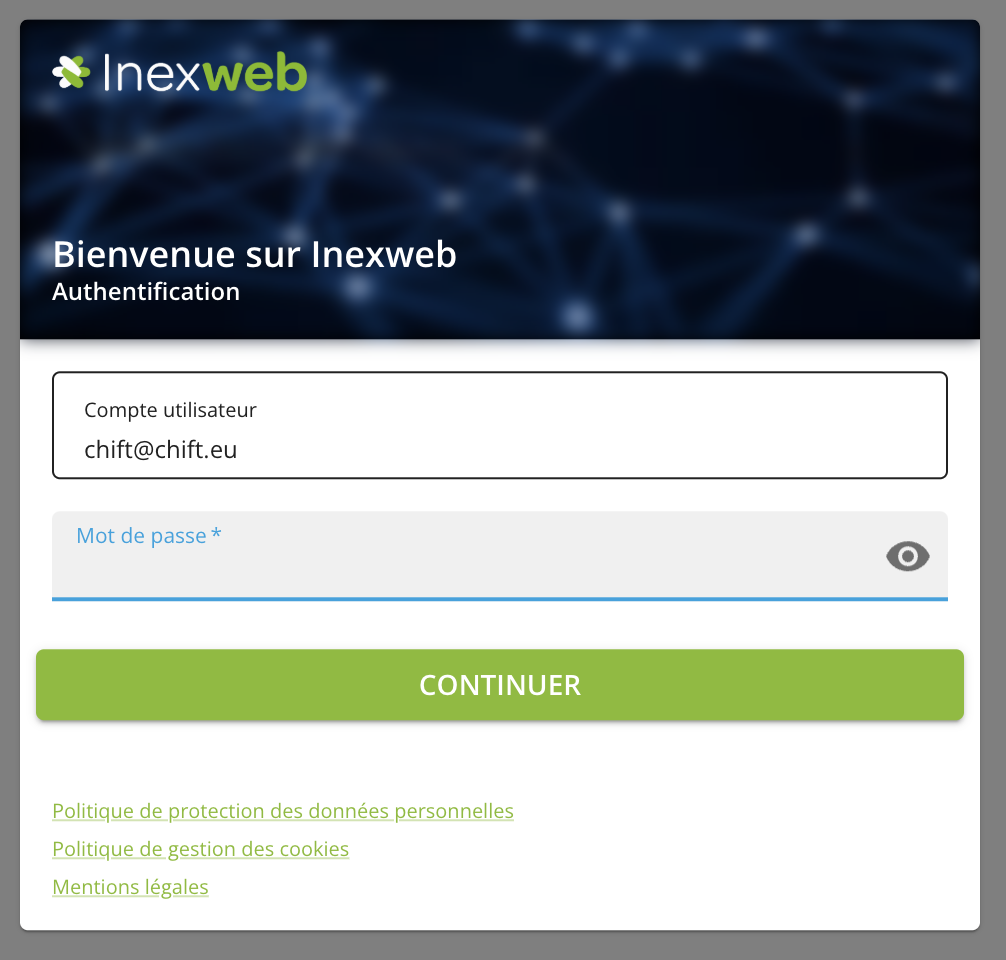
Step 3: Enter your InexWeb IDs – In Extenso and then confirm; You will then be redirected to Shift.
ERRORS
⚠ In case of error please check that the application to which you are trying to connect "InexWeb – In Extenso" is enabled. If this is not yet the case, please contact In Extenso support (assistance@fulll.help) to activate the application.
Do you have any doubts about the configuration of this software?
Contact us to validate the prerequisites, the accounting framing and the points of attention before placing in production in Belgium or France.