Pourquoi connecter Lexware Office (Lexoffice) avec Data Merge Finance ?
Préparez la configuration de Lexware Office (Lexoffice) avec Data Merge Finance en Belgique, en France ou en Europe : prérequis, cadrage comptable et documentation Chift.
Cette connexion s’adresse aux PME, fiduciaires et structures en croissance qui utilisent Lexware Office (Lexoffice) comme logiciel et veulent transmettre des données fiables vers leur environnement comptable en Belgique, en France ou dans un contexte transfrontalier.
Les recherches les plus fréquentes autour de cette page portent sur des besoins concrets comme Zoho Books + Lexware Office (Lexoffice), Odoo + Lexware Office (Lexoffice) ou Teamleader + Lexware Office (Lexoffice). Derrière ces requêtes, l’objectif reste le même : connecter la facturation, la TVA, les tiers et les écritures sans ressaisie manuelle.
- Synchronised data: sales invoices, purchases, credit notes, third parties, VAT, newspapers and useful items according to the selected framing.
- Expected benefits: less double encoding, fewer closing corrections and better continuity between management and accounting.
- Setting up: a few days of framing and validation on your priority cases, then a gradual and controlled production.
La documentation technique ci-dessous détaille ensuite les prérequis, les étapes de configuration et les points de contrôle pour intégrer Lexware Office (Lexoffice) proprement dans votre flux Data Merge Finance.
Configuration complète de Lexware Office (Lexoffice)
🚨 PREQUESTS
API Token in Lexoffice – To connect, you first need to generate an API token in your Lexoffice account. The steps to do this are outlined below in the Preparation section.
🛠 PREPARATION
-
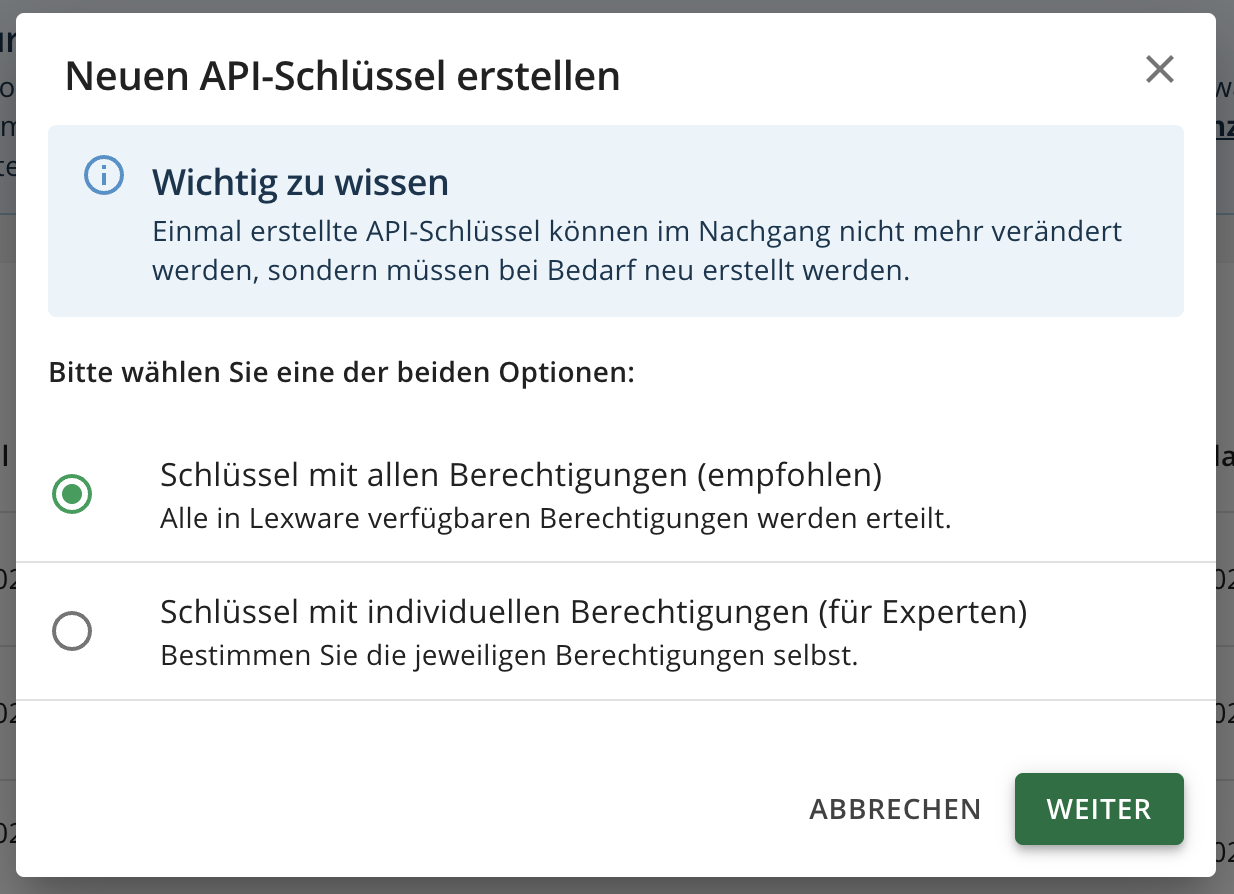
Or if you prefer to set individual permissions, at minimum you need to enable:
-
– Get general profile information
– Retrieve contacts
– Save contacts
– Retrieve invoices
– Save invoices
– Retrieve receipts
– Save receipts
– Filter and retrieve receipt list
– Retrieve payment information from receipts
– Retrieve credit notes
– Save credit notes
– Retrieve vouchers
-
Give the name of your choice to your key and check the checkbox to be able to generate the key. Once the key is generate, copy the token for later usage.
Important: The token is displayed only once, so make sure to save it immediately. Otherwise, you will need to generate a new token.
The token is by default valid for for 2 years. You will have to generate it again when it expires.
⚡️ CONNECTION
Step 1: Choose a name for your connection. (If the connection name field is not visible, simply skip this step and continue.

Step 2: Paste the API key

Step 3: Click "Connect" to complete the connection.

Do you have any doubts about the configuration of this software?
Contact us to validate the prerequisites, the accounting framing and the points of attention before placing in production in Belgium or France.