

Full configuration of Sage 100 EN
🚨 SAGE 100 activation requires support from your Sage IT partner or integrator.
All necessary information and assistance are detailed in the pages related to your version.
There are three versions within Sage 100 France:
-
Sage 100 Online
👆 To continue the configuration of the connection, please click on the link corresponding to your version above.
How do I determine my version of Sage?
This involves answering the following questions:
How do you connect to Sage? Go to Sage directly from the following page: www.sageonline.fr or access Sage from software installed directly on your computer or remote server.
-
If you are using a remote server, this means that you are using the "On Premise" version but also that you cannot access the above mentioned page.
-
If you access Sage directly through the above page, you will need to go directly to Sage and open the Subscription section. The version will then be indicated in the Subscription section of the page. Please find below a screenshot with an example for our test instance.
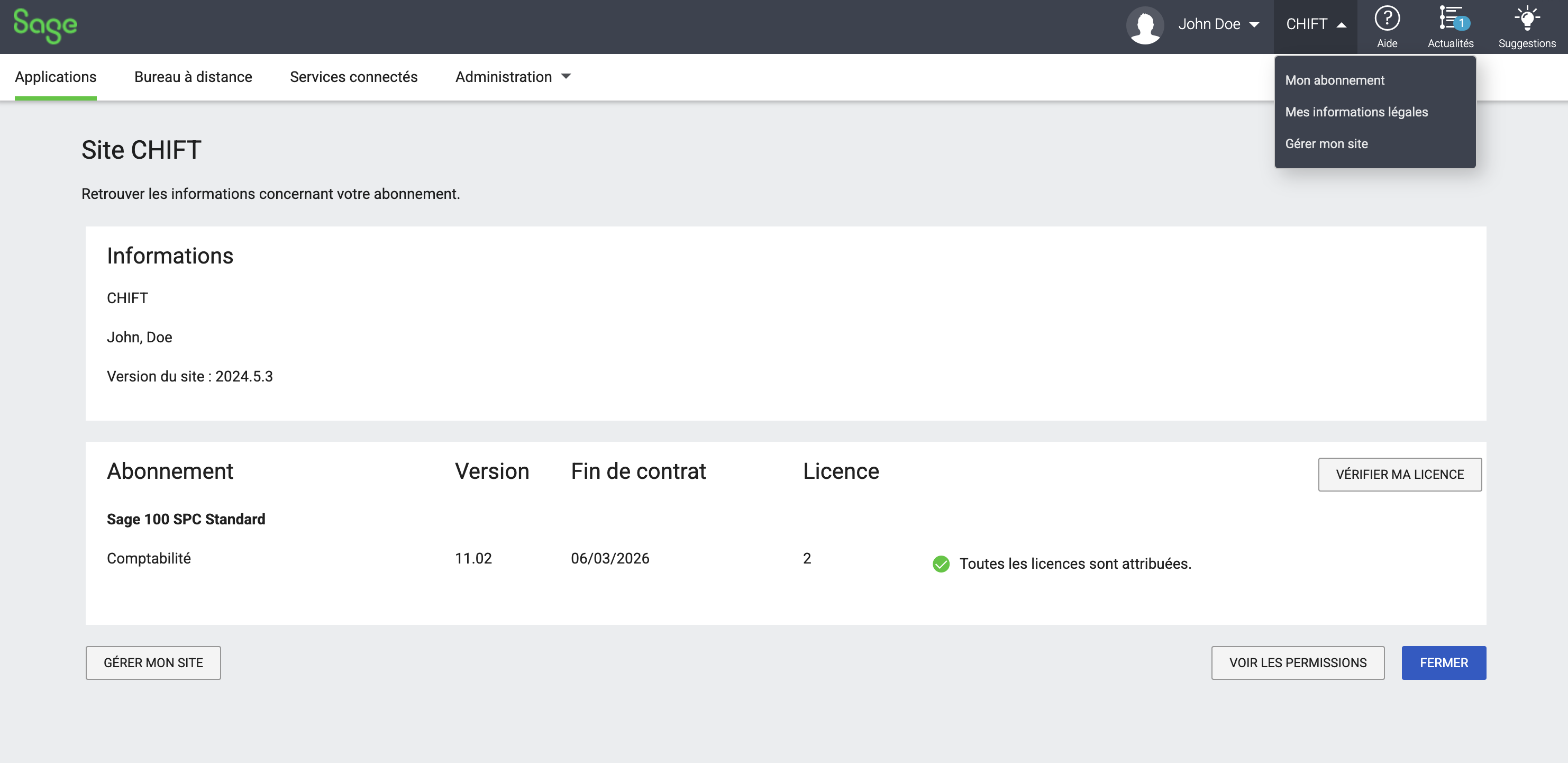
The integration in Sage 100 France is only available for Sage 100 "On Premise" and Sage 100 SPC.
If you have the Sage 100 Online version and want to implement the integration, it is quite possible. To do this, you will need to get closer to Sage 100 in order to mount a Sage 100 version "SPC" or "On premise".
Local agent:
In both versions of Sage 100 "On Premise" and "SPC", you will need to install a local agent on the server (computer) where your Sage100 instance is installed to establish connection and integration with the software.
To learn more about the local agent, Here is an explanatory article.
🚨 If you encounter a synchronization error between local agent Sage 100 FR and Shift
Restart local agent
-
Visit the window services management application (service.msc)
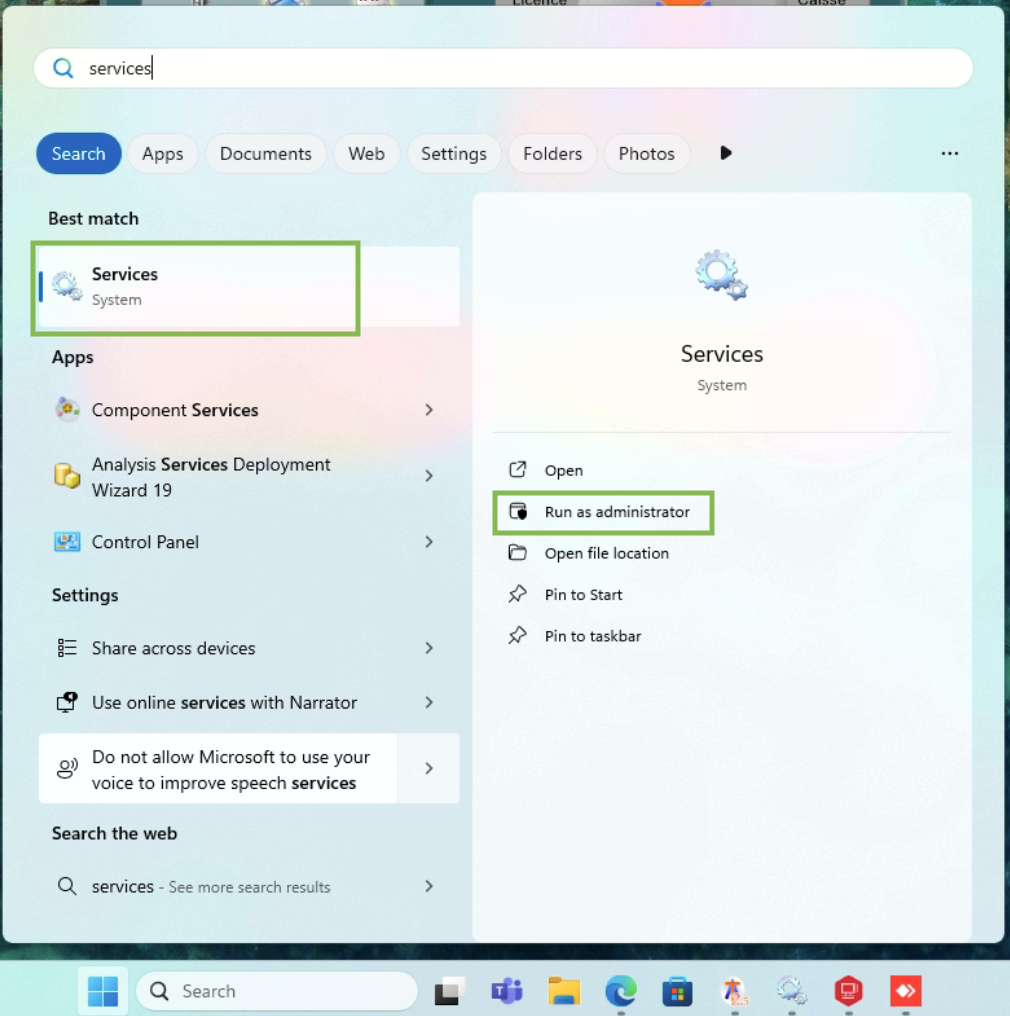
-
Make sure the SAGE100FR service is configured to work with a user with access rights to the SQL Sage DB as well as network sharing where the Sage files are located.
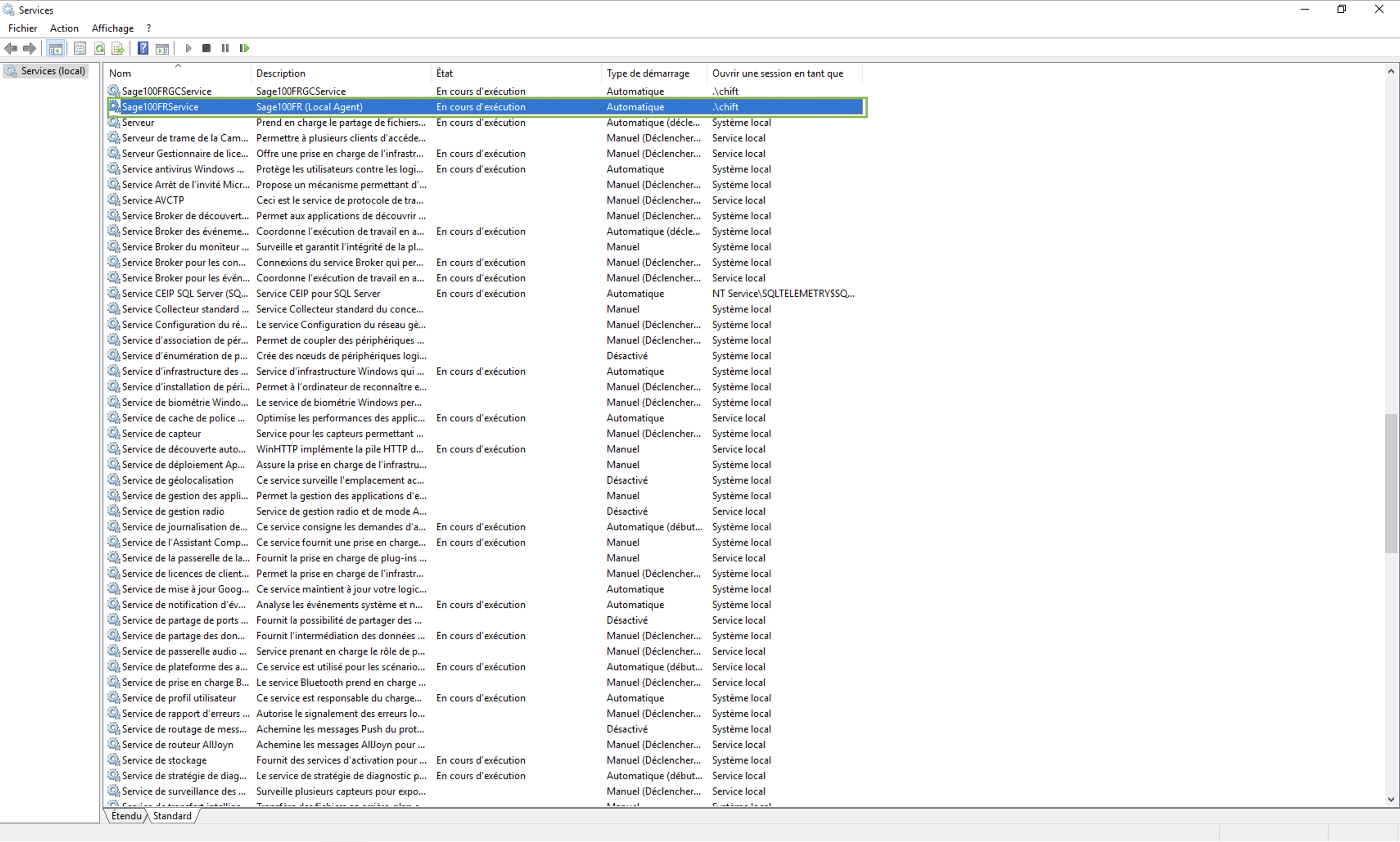
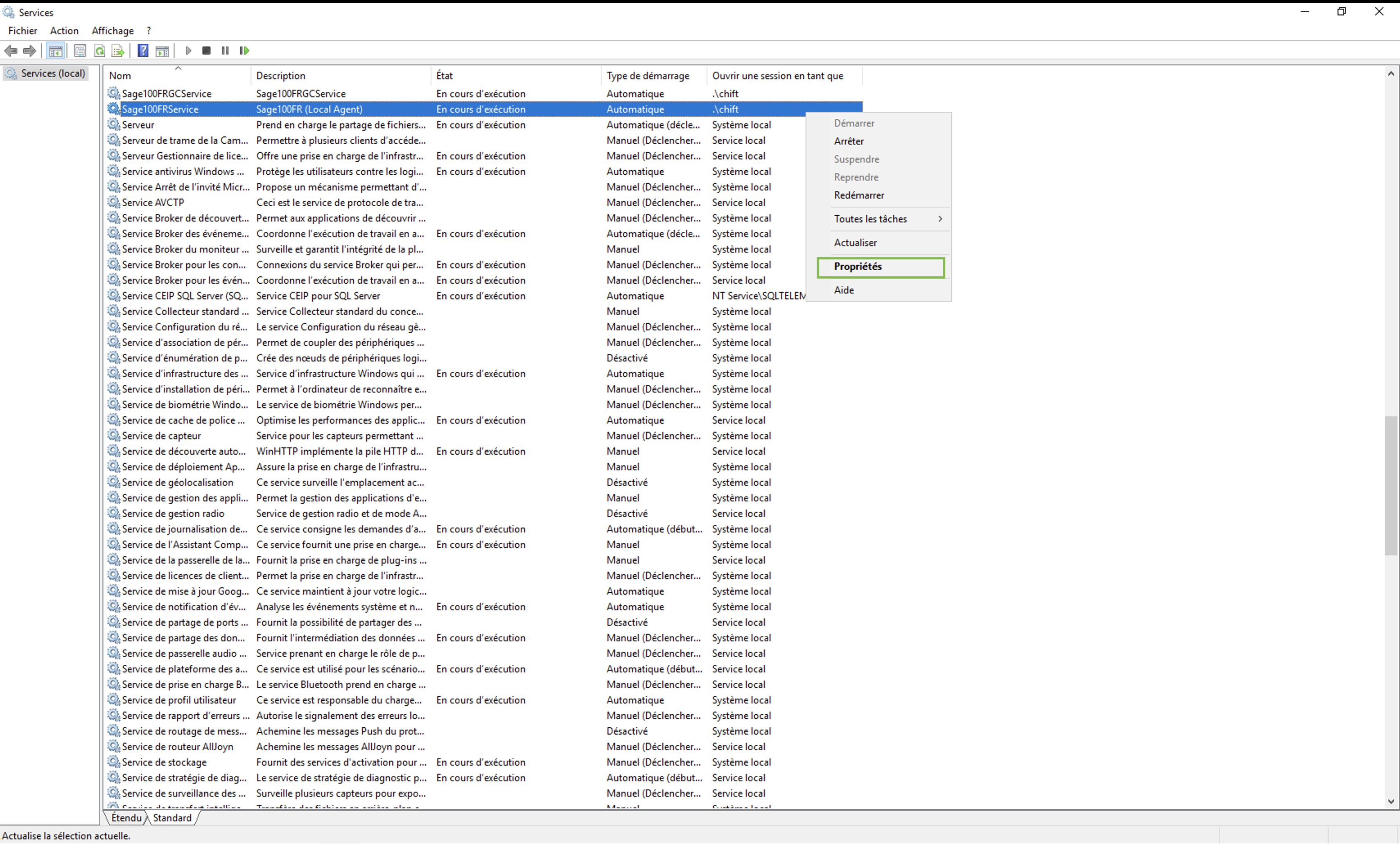
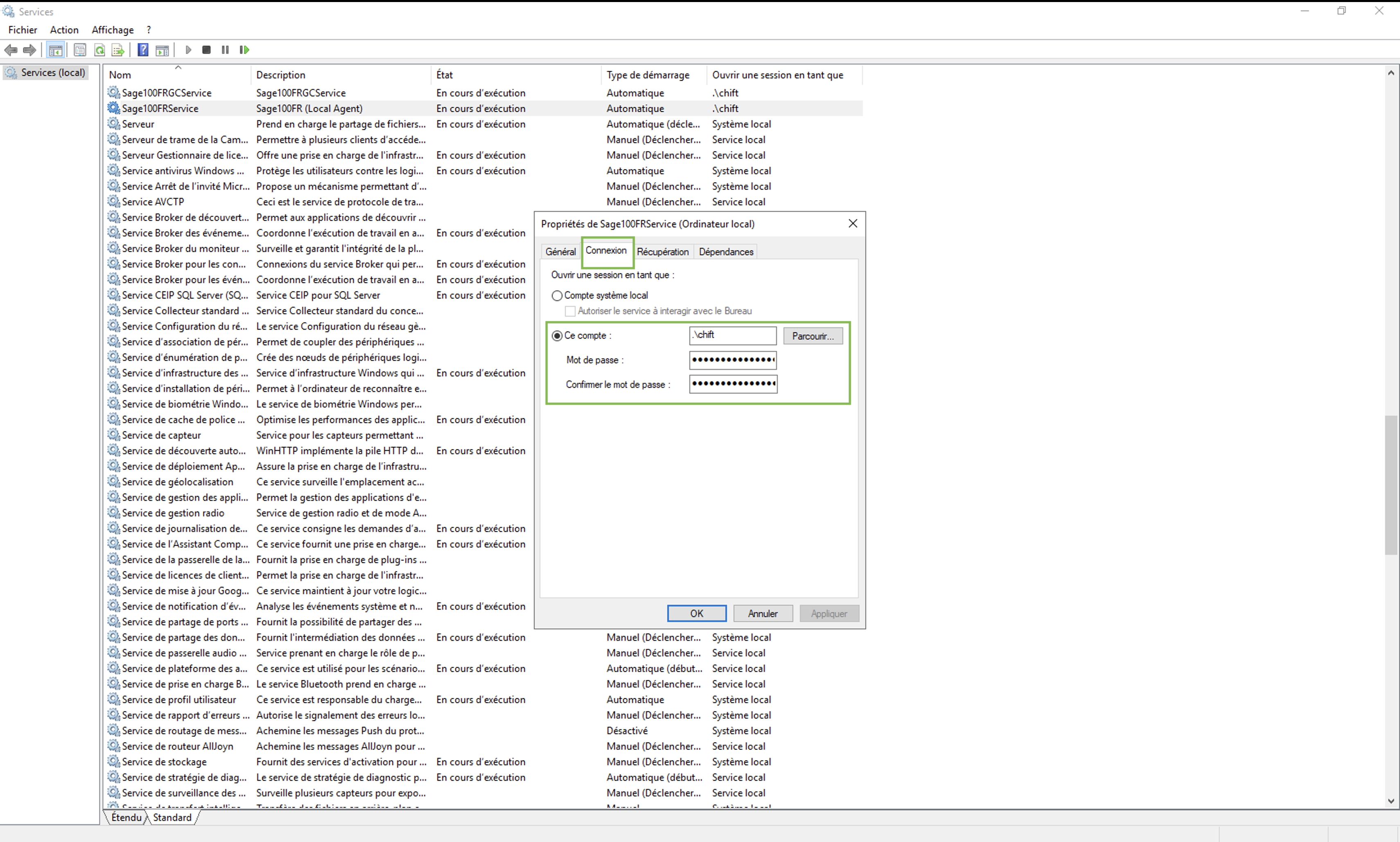
-
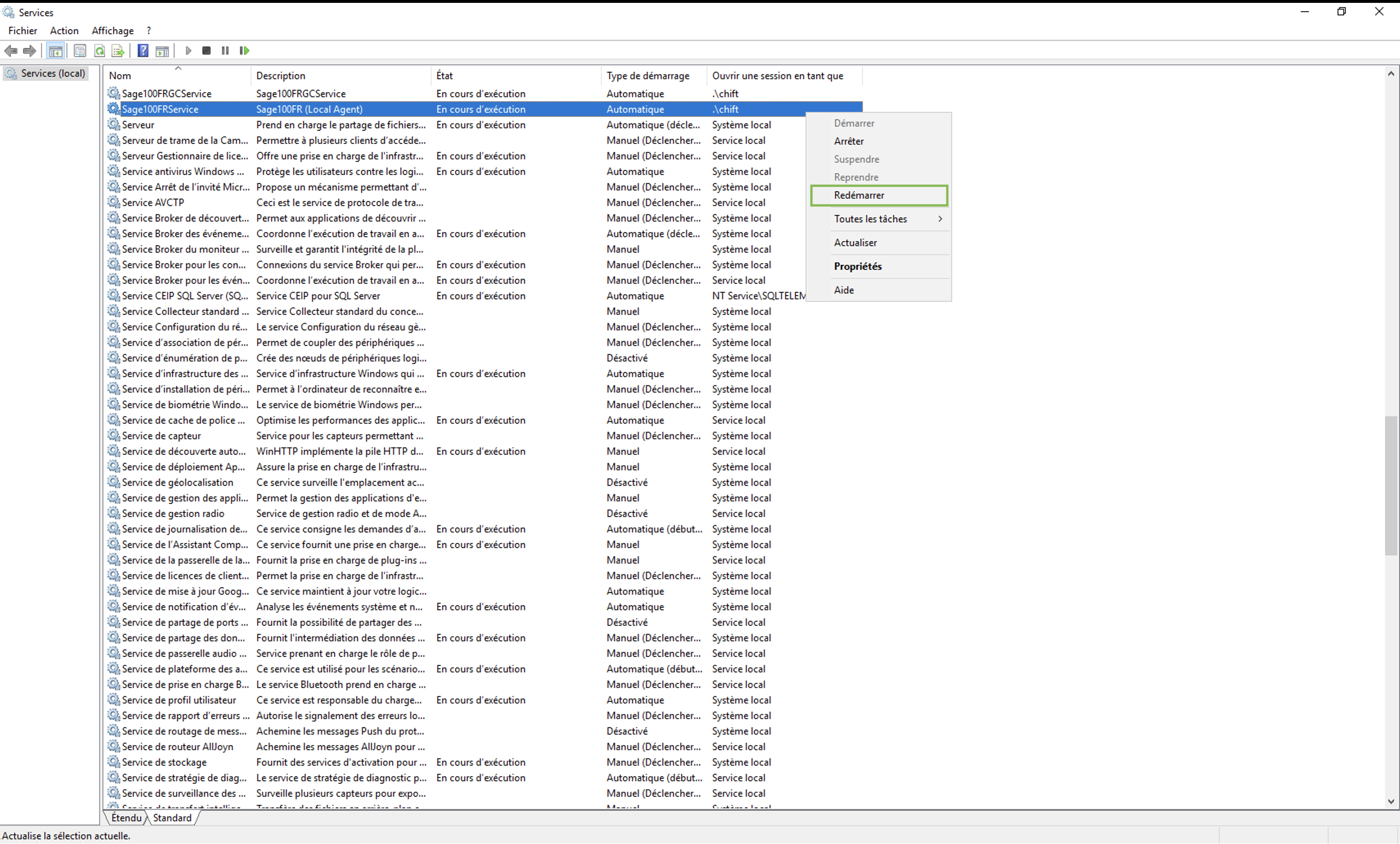
Restart the SAGE100FR service
Recovery of the COM class factory for component XXX failed
The problem is the version of the business objects library installed that does not match the data available on the computer or server on which the local agent is installed.
It is therefore necessary to check in order:
-
Is the business objects library installed?
-
Does the version of the business objects library installed match the Sage version of the client?
-
Does the local agent version installed by the client correspond to the Sage version used by the client?
This error is systematically caused by one of the three cases above.
One folder is connected but the others are displayed as not active or not installed
The problem certainly comes from an error when installing, one of the connected folders has visibly overwritten all past connections, which has disconnected all existing connections.
Here you have to go to the settings.json file used by the windows service to look at the content.
This file follows the following path: C://ProgramFiles/Sage100FRService
This file contains details of the connections currently configured in the local agent. It is then necessary to check that this file contains an entity connection to Sage in the "connections" section of the json file.
The connections present are the connections of entities still detected as connected.
To solve the problem, it is necessary to redownload connections for other entities by making sure to select the option "add connection" when pop up appears on the screen. This will add the connection to the previously mentioned settings.json file.
Connections should therefore recover folder by folder as long as the option of not overwriting existing connections is selected by the user.
An error occupied during the initialization of Sage 100 EN
Access denied
The denied access problem is generally related to the fact that the user with whom the Windows Service is executed does not have the necessary access. To resolve this error, the following elements must be checked:
-
The path indicated in the form is correct (If the folder is on an external server or network disk, be careful to use the UNC Path and not a path with S: network disks ...). If the folder is on an external server or network disk, it is essential to run the Windows Service with a user having access to this external server/network disk.
-
the user used to run the service does not have access to the path in question. This requires modifying the user used to run Windows Service. To do this, take the following steps:
-
From the windows menu that links Windows Services, find the service called Sage100FRService, right click and click on the properties button
-
Go to the Login section, click this account option and then click the Browse button
-
In the bottom section, enter the user windows to use, press check to confirm that the user windows exists well and press the OK button to confirm
-
Inform the user's password and apply changes to the Service windows by pressing the apply button
-
After these steps, please restart Windows Service so that changes are taken into account. If the problem persists, use an Administrator user by doing the steps described above again
-
Error: Amazon. Runtime. AmazonServiceException – Failure to connect to AWS services
If you encounter the following error in local agent logs:
Amazon.Runtime.AmazonServiceException: A WebException with status ConnectFailure was thrown. ---> System.Net.WebException: Unable to connect to the remote server --->This error indicates that the server on which the local agent is installed cannot establish a connection with AWS services, most often because of network or firewall restrictions.
Main cause
-
Server blocks outgoing connections to the AWS endpoints used by Shift.
-
This usually occurs if the port 443 (HTTPS) is restricted by a firewall.
Comment diagnostiquer le problème
Effectuez un test Telnet pour vérifier si les endpoints nécessaires sont accessibles depuis le serveur :
-
Ouvrez un terminal (Invite de commandes) sur le serveur où l’agent local est installé.
-
Lancez la commande suivante :
telnet sqs.eu-west-3.amazonaws.com 443-
Cela permet de tester la connexion à AWS SQS, qui est utilisé pour la communication entre l’agent et Chift.
-
-
Effectuez également un second test pour le service S3 (utilisé lors d’envois de gros volumes de données) :
telnet s3.eu-west-3.amazonaws.com 443
Si l’un de ces tests échoue (ex : la connexion expire ou ne peut pas être établie), cela signifie que le pare-feu bloque la connexion.
Résolution
-
Assurez-vous que le port 443 est ouvert pour le trafic sortant HTTPS.
-
Le pare-feu ou proxy doit autoriser les connexions vers au minimum les domaines suivants :
-
sqs.eu-west-3.amazonaws.com -
s3.eu-west-3.amazonaws.com
-
-
Il peut également être nécessaire d’autoriser la plage d’adresses IP complète d’AWS pour la région eu-west-3, selon les politiques réseau de votre client. Vous pouvez consulter les plages d’adresses IP AWS pour obtenir la liste à jour.
Une fois les règles réseau mises à jour et la connexion autorisée, l’agent devrait pouvoir communiquer normalement avec les services AWS, et l’erreur ne se reproduira plus.

