

Full configuration of Sage BOB 50
PREREQUIRED
The connector currently only supports the version of BOB 50 with the ADS database (and ADT files). If you are using a more recent version of BOB with a MySQL database, the connector is not yet compatible with your version of BOB 50.
Sage BOB50 requires the installation of a local connector to allow data exchange. In order to be able to carry out this installation:
-
have access to the server/computer in admin where Sage 50 is installed.
-
ATTENTIONPlease note that the server/computer must be permanently accessible with Internet access (24 hours a day). If not, the data will not be synchronized
-
-
integration is compatible with version 6.16 and higher of Sage BOB 50
-
Bring you code (not password) representing an ADMIN user in BOB50.
-
Invite your employee who manages the server to the appointment
ATTENTION: the .NET Framework 4.8 must be installed on the server/computer where the local agent will be installed!
If your integration plans to send information to BOB50, then the Link module is required otherwise these items will not be able to arrive in BOB50.
If you are using network disks, make sure you go through the last step detailing recurring problems to ensure that everything is properly documented. All paths you will need to provide will also have to follow the UNC format.
PREPARATION
Watch this help video:
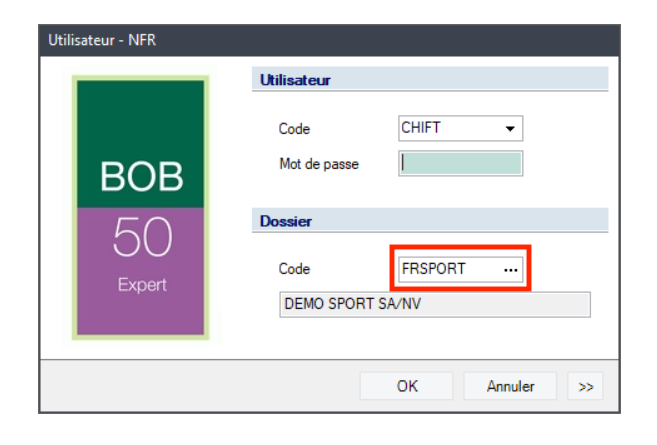
Step 1: Recover your folder code from your BOB 50 account authentication page
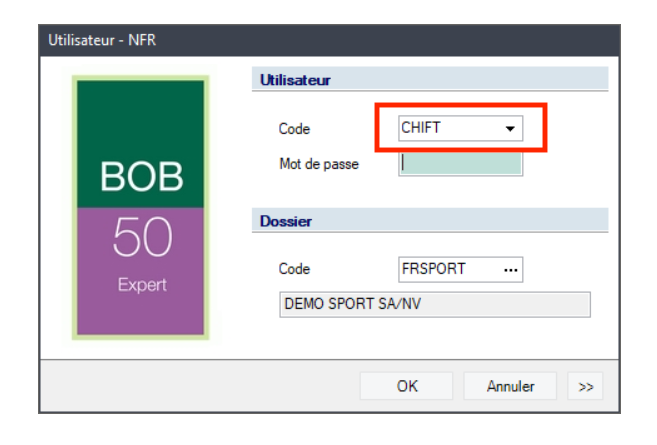
Step 2: Recover the username from your BOB 50 account authentication page
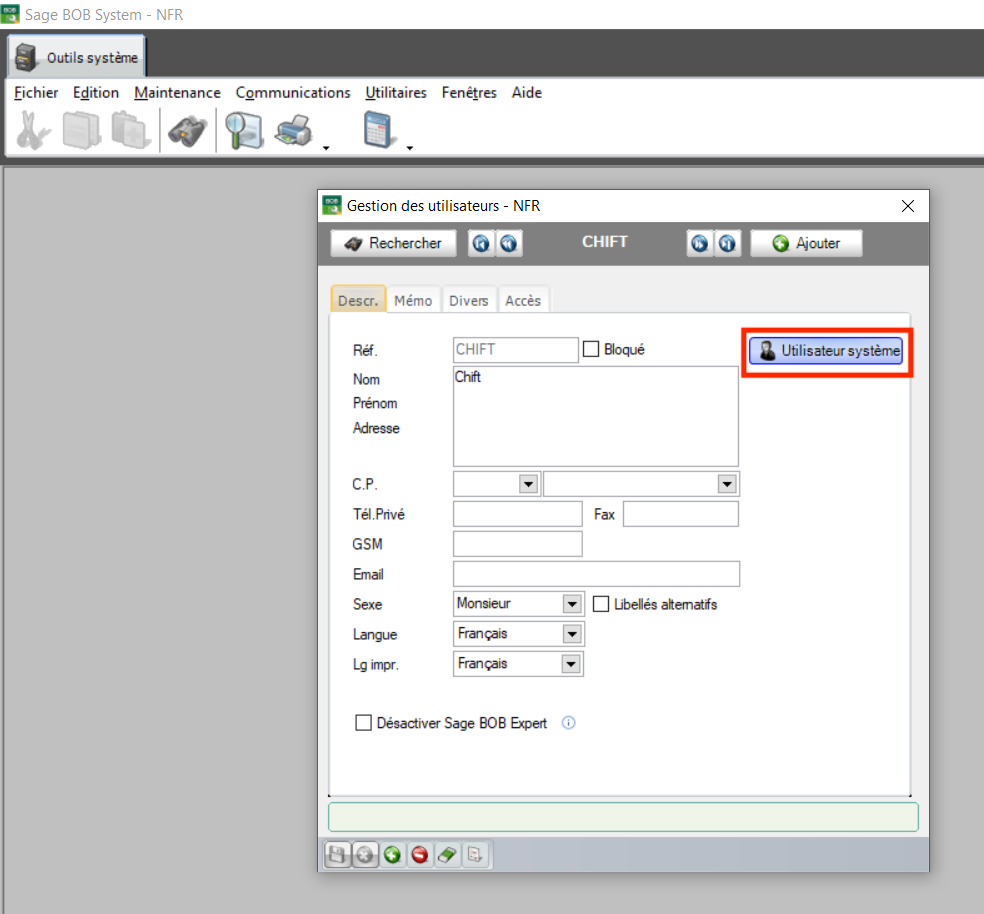
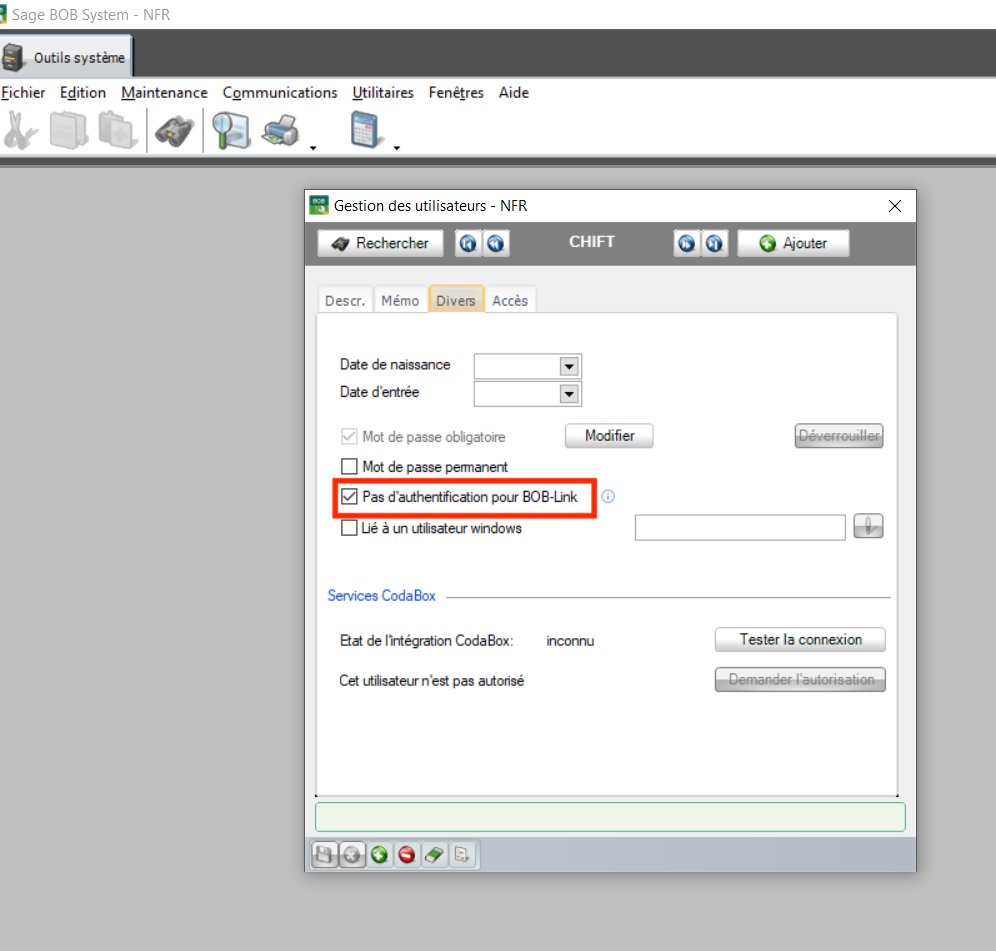
ATTENTIONCheck that the user is a "system user" and that the user does not require a password to use BOBLINK. This can be checked by opening BOB System and selecting the user in question:
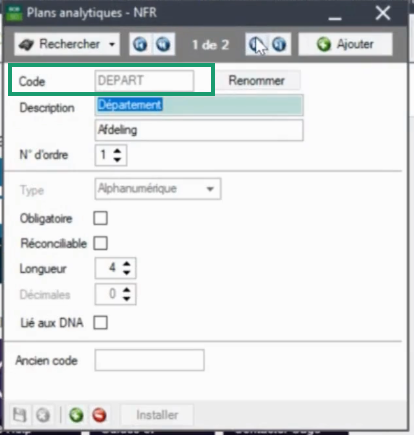
Step 3: Get the Analytical Plan code.
Utilities →Configuration→Definition of analytical plans
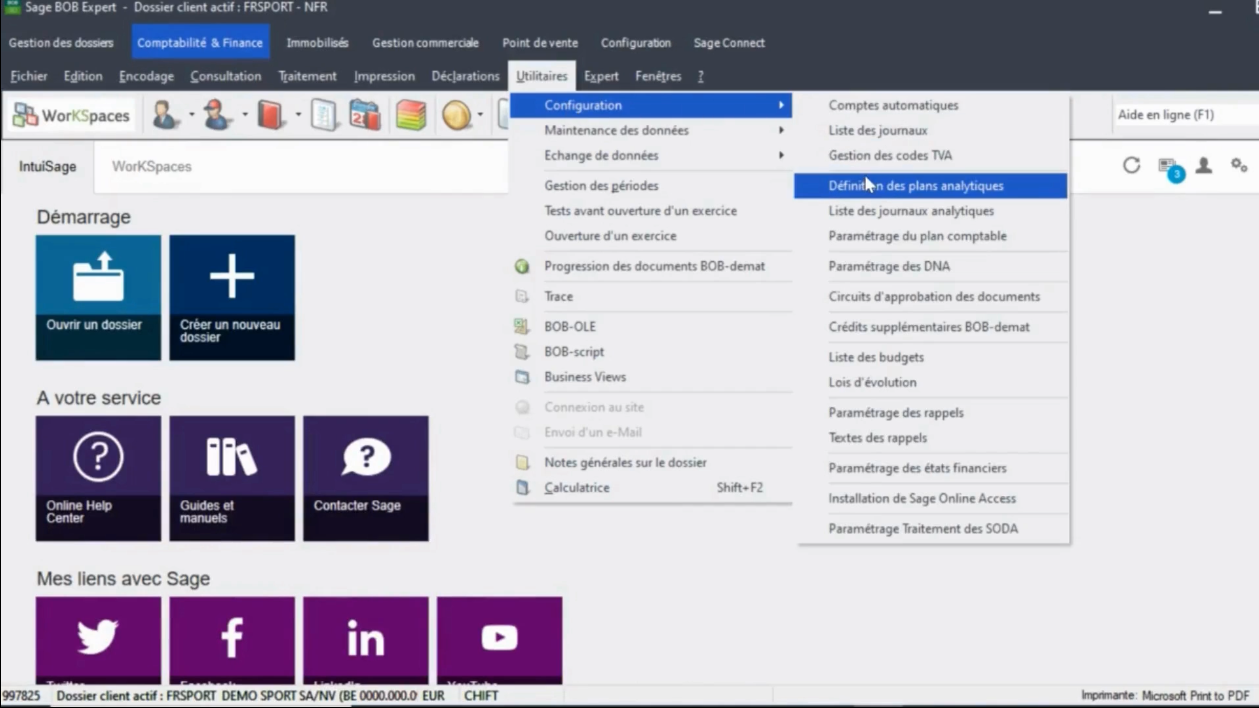
There is one or more plan, select the one you want to connect and copy the code.
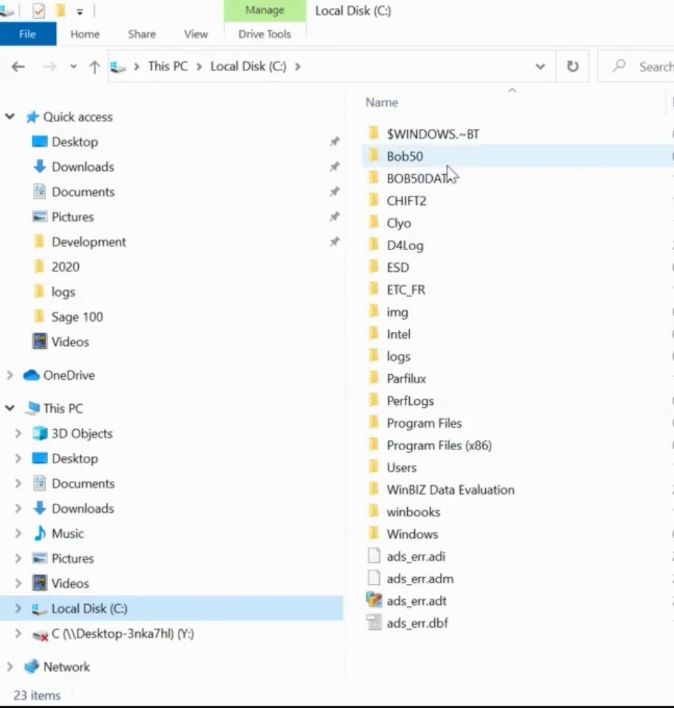
Step 4: Find the location of BOB 50 software on your computer.
-
Go to Files → Local Disc (C:) → Bob50
-
Find BOB.ini and copy the framed link
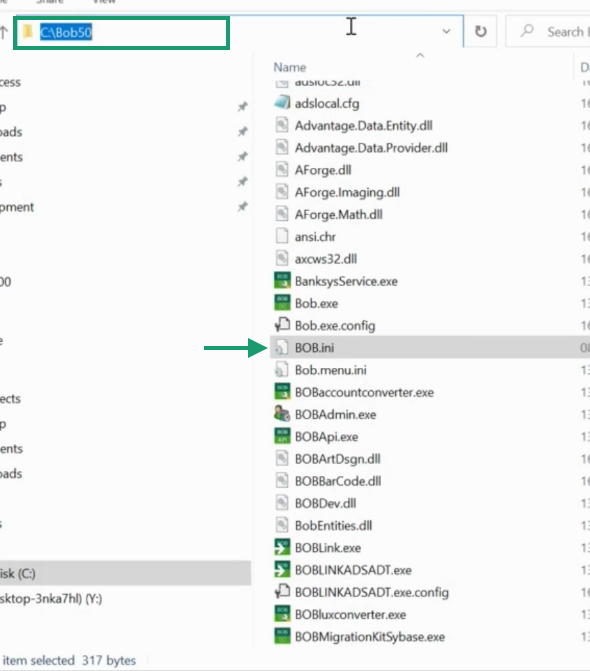
Step 5: Find the location of BOB 50 software on your computer.
-
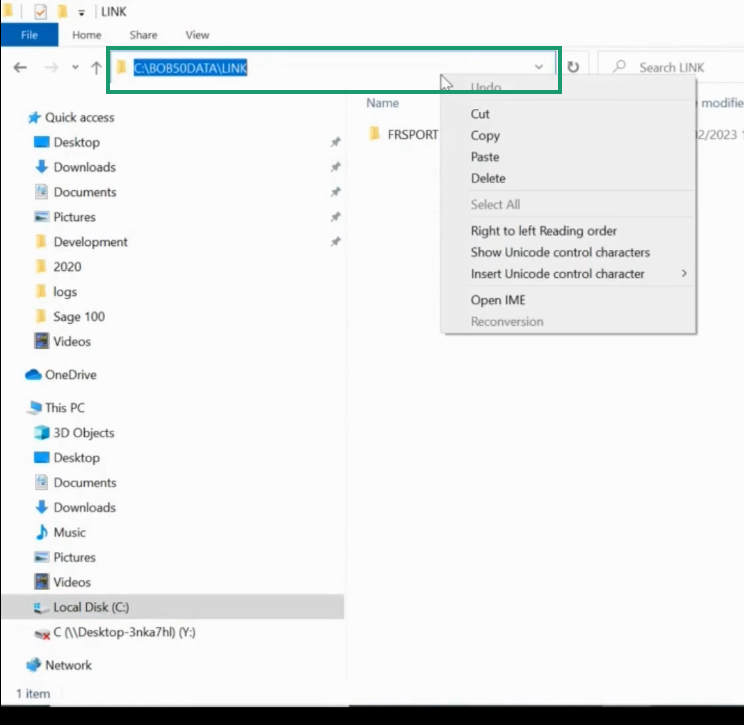
Go to Files → Local Disc → Bob50DATA → LINK and copy the framed link
CONNECTION
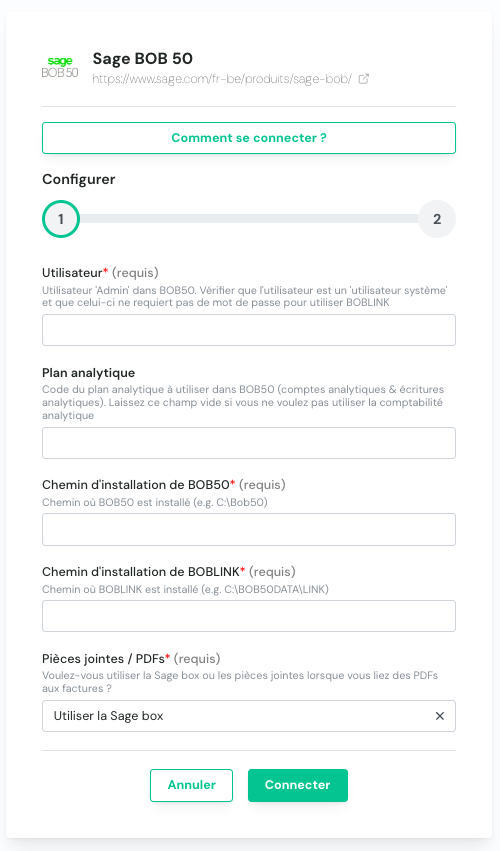
Step 1: Choose a name for the connection (shown according to the software), username, analytical plan, folder path BOB50 & BOBLINK; Then choose if you want to use wise box or attach files to invoices.
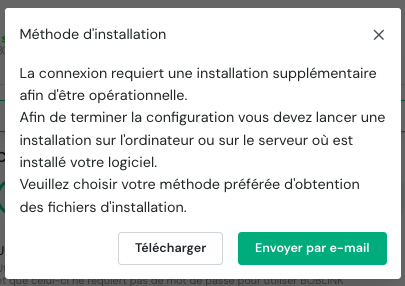
Step 2: Download and install local agent on the computer/server where BOB50 is installed.
Step 3: Provide the folder code.
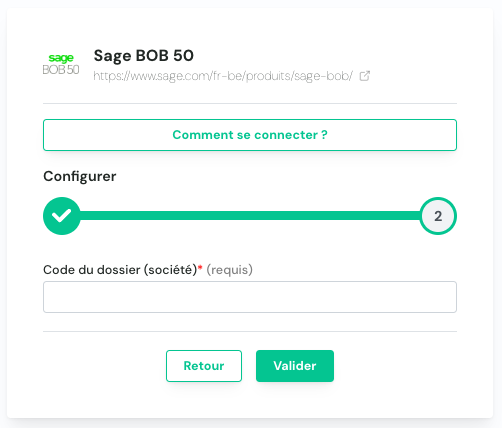
Step 4: Then complete the connection via the "Valider" button.
TELECTION OF THE LOCAL AGENT
Sage BOB50 is installed on a server/computer. To enable data sharing, it is necessary to download a program (local agent) that will allow data exchange with Sage BOB50.
After the login step, you will have two options to download and install the local agent on the same server/computer as your Sage BOB50 instance:
-
If you have admin access to the server/computer where Sage BOB50 is installed, you can download the program directly by clicking on Download
-
If Sage BOB50 is installed on a server/computer that you do not have access to in admin, you can send the program by email to the person or company that has these admin accesses to the server/computer where Sage BOB50 is installed
🚨 If there is an error with the local BOB50 agent on the server
Authentication error
This error usually indicates that some elements do not correspond to those expected during the execution of the service, so the simplest is here to recheck the different elements step by step.
-
Do you use network disks / Does the service use a particular user to run itself?
If this is your case, then we recommend you log in to the user in question to perform the following steps, this will allow you to identify any access problems on the user in question if some of the paths used subsequently lead to nothing on the user in question.
-
In the form you entered on Shift to connect some paths you were asked for. Make sure the path in question is either a local path with disk C: or a valid UNC path. After checking this, copy the path entered in the form and paste it into your windows file explorer. You should arrive in your BOB50 folder and find a BOB.ini file. Open this file with the note block. You should get a file like this:

-
Make sure that all the indicated paths are marked either via a local C: path or in the UNC format. If not, adjust the paths to follow the UNC format.
-
Copy the path you see at the COMMONDATA line and paste it into your file explorer. You should then find yourself in a folder containing a file set related to BOB50. Open the company.adt file, so you should have a file similar to this:

-
In the same way here too, make sure that all the paths indicated on the folders you wish to connect are filled either via a C: path or via a UNC path. You can see the two examples in the screenshot above.
Change user running the service
This step is mandatory if you use network disks. By default, the user running the service will be the local system user. The latter only has access to standard local disks (C:) and does not have access to other disks.
To modify the user running the service, you must first choose a window user with access to BOB50 and the disks on which your data is stored.
Start by searching windows with the word service to open the service manager on your server. Make sure you start the program as an administrator.
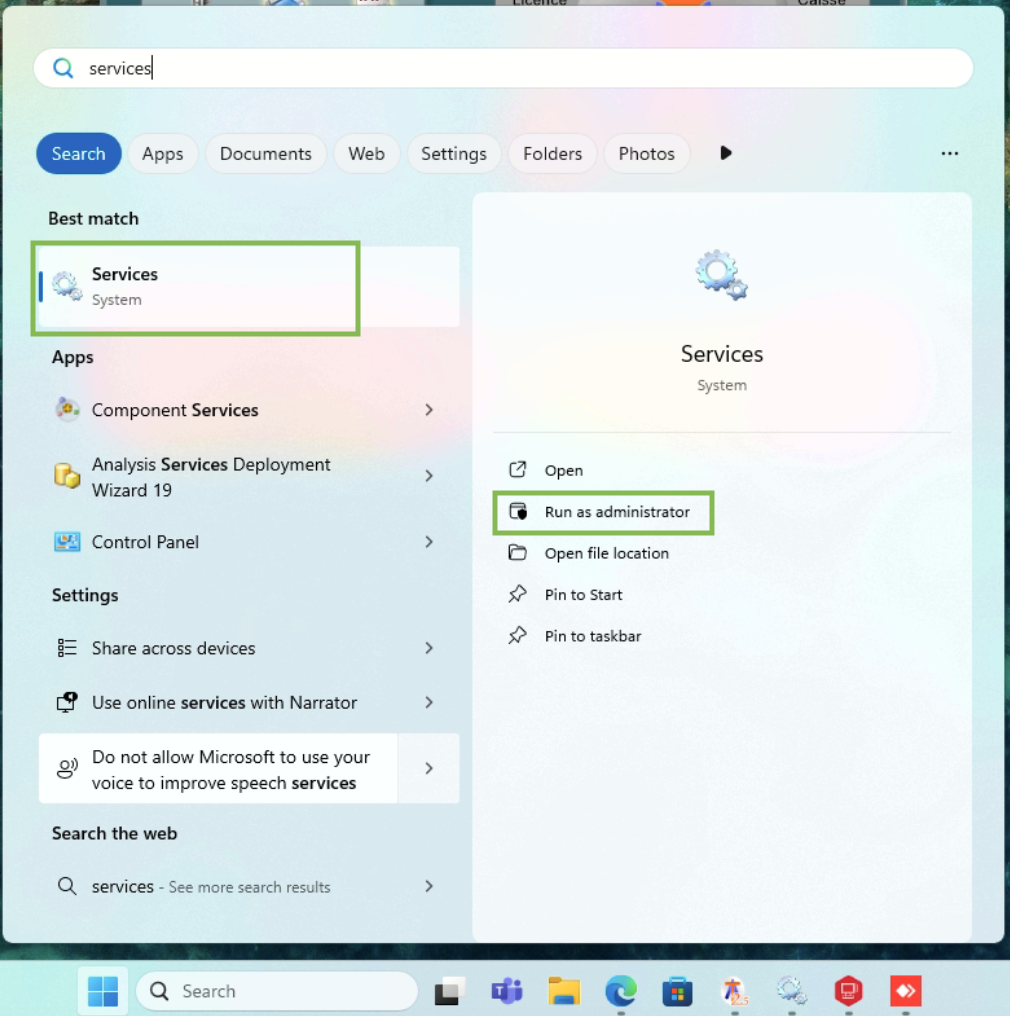
In the list of services you will find a service called "BOB50Service". Right click on the service and click on the properties option. Then go to the "Login" section.

Select the "this account" option and provide the user identifiers you want to use to run the service. As soon as this is done, make sure to click the application button at the bottom right so that the changes are saved by the service.
Finally, it is necessary to restart the service in order to make this change effective. To do this, right-click the service again and click the "Restart" option. The service will then restart with the selected user.

